
Download VMN Toolbox – Free Web Design Utility for Screenshots, Color Picking & Rulers
Overview
VMN Toolbox is a lightweight, unobtrusive toolbar that bundles five essential web‑design utilities into a single, easy‑to‑use package. Whether you are a budding web developer, a graphic‑designer polishing a client mock‑up, or simply a power user who likes to capture snippets from the internet, VMN Toolbox gives you a screen‑capture tool, horizontal and vertical pixel rulers, a colour picker, a magnifying glass, and a quick‑note pad—all accessible from a compact floating bar. The interface follows a clean Web 2.0 aesthetic, making the tools feel modern without overwhelming the user with menus or configuration dialogs.
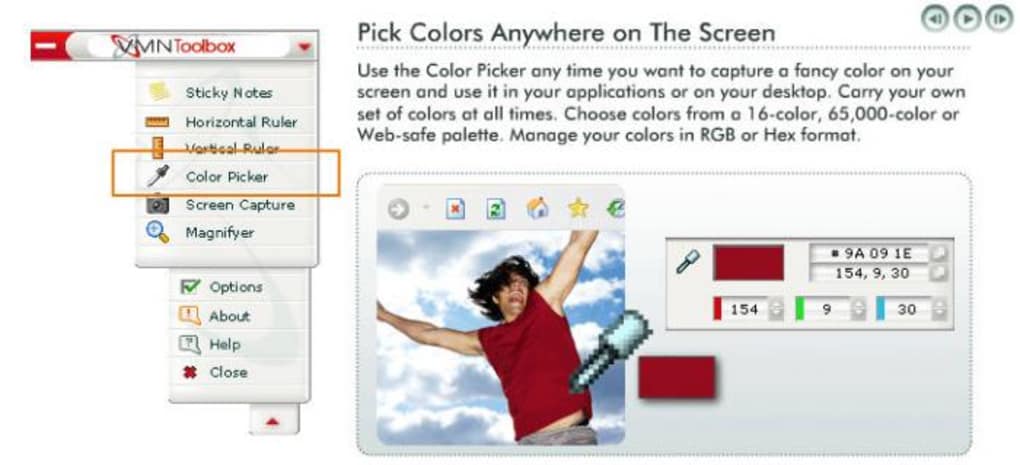
Each function is activated with a single click, and the results are instantly visible on your desktop. For example, the colour picker lets you drag the cursor anywhere on the screen to sample a shade, then you can add it to an unlimited custom palette or choose from VMN’s pre‑built collection. The pixel rulers slide along the screen edges, offering precise measurement of images, logos, or layout blocks.
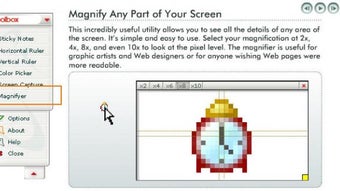
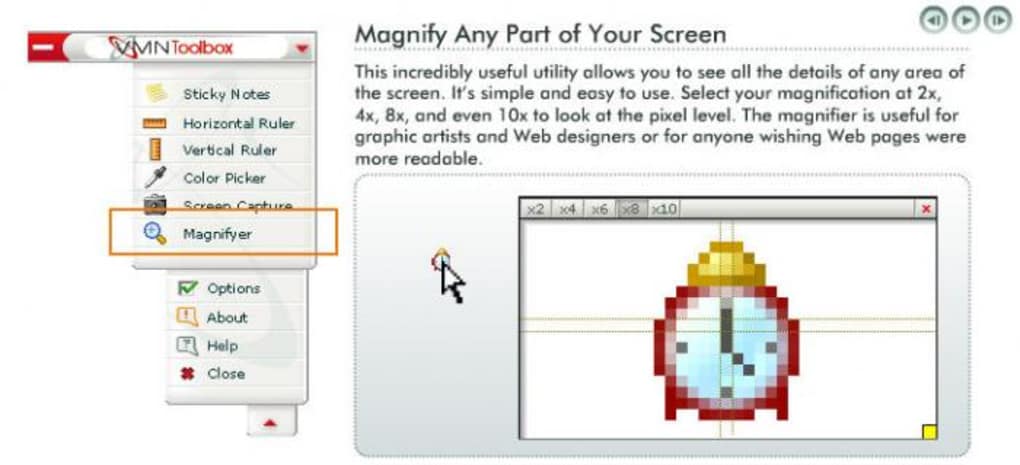
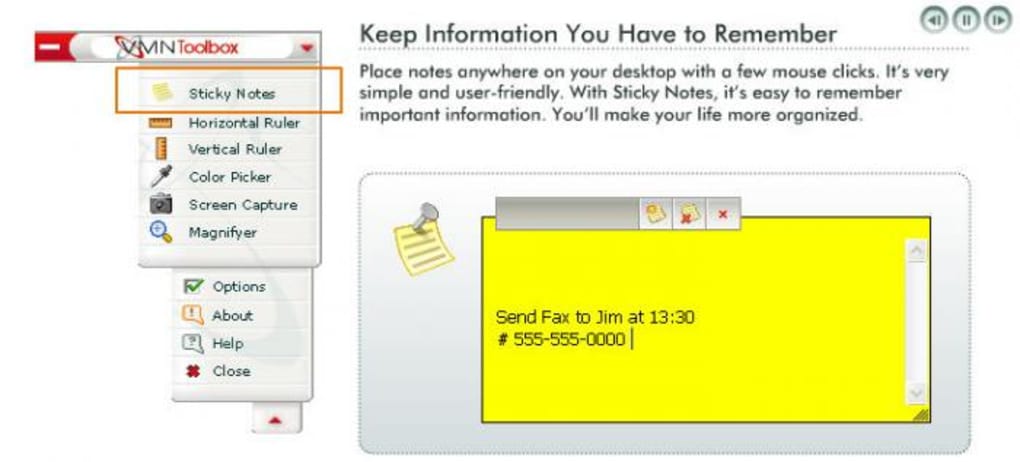
The screen‑capture module works by dragging a rectangle over the desired area and hitting the capture button, while the magnifier zooms in from 2× to 10× to help you inspect fine details. Finally, the note taker provides a simple sticky‑note style window that stays on your desktop for quick reference. All of these tools are bundled in a single download, which means you don’t have to juggle multiple applications or worry about compatibility issues.
The toolbox is free, updates automatically, and runs securely without requiring elevated permissions.
Key Features & Installation Guide
Feature List
- Screen Capture – drag‑and‑drop area selection, save as BMP or JPG.
- Horizontal & Vertical Pixel Rulers – move freely, measure any on‑screen element.
- Colour Picker – sample any pixel, unlimited custom palettes, built‑in colour library.
- Magnifying Glass – zoom levels from 2× to 10× for detailed inspection.
- Note Taker – lightweight sticky notes that stay on the desktop.
- Compact Toolbar – always‑on‑top, auto‑hide, and minimal CPU usage.
- Free Updates – automatic download of new versions without extra cost.
Step‑by‑Step Installation
Installing VMN Toolbox is straightforward and can be completed in under five minutes:
- Download the installer: Visit the official VMN website and click the “Download VMN Toolbox” button. The file is a small
.exe(approximately 3 MB) that works on Windows 7, 8, 10, and 11. - Run the installer: Double‑click the downloaded file. Windows may display a security warning; confirm that you want to run the program.
- Accept the license agreement: Read the short EULA, then click “I Agree” to proceed.
- Choose installation options: You can keep the default settings, which place the toolbar in the system tray and start the app on Windows startup. Advanced users may deselect “Launch at startup” if they prefer manual control.
- Complete the setup: Click “Install” and wait for the progress bar to finish. Once done, click “Finish” – the toolbox will appear as a slim toolbar on your screen.
- Configure preferences (optional): Right‑click the toolbar to open the settings window. Here you can change the default save folder for captures, set the preferred colour palette, and adjust the magnifier’s zoom steps.
After installation, the toolbar automatically loads each time you log into Windows. The application consumes less than 20 MB of RAM, making it suitable for older machines or laptops with limited resources. If you ever need to remove VMN Toolbox, simply run the uninstaller from the Control Panel or use the “Uninstall” option in the settings menu.
Compatibility, Pros & Cons
Operating System Support
VMN Toolbox is built for the Microsoft Windows ecosystem. It supports Windows 7, Windows 8, Windows 10, and Windows 11 (both 32‑bit and 64‑bit editions). The installer detects the appropriate architecture automatically. While there is currently no native macOS, Linux, Android, or iOS version, the Windows‑only focus allows the developers to keep the toolbar lightweight and responsive.
Pros
- All‑in‑One Solution: Combines five frequently used utilities, eliminating the need for multiple downloads.
- Free & Secure: No hidden fees, no adware, and signed binaries that pass Windows Defender checks.
- Low System Impact: Minimal CPU and memory usage, ideal for older PCs.
- Intuitive UI: Simple icons, drag‑and‑drop actions, and immediate visual feedback.
- Custom Colour Palettes: Unlimited colours can be saved for future projects.
- Automatic Updates: Keeps the toolbox current without manual intervention.
Cons
- Limited Export Formats: Screen captures are restricted to BMP and JPG; no PNG or GIF support.
- Windows‑Only: No native versions for macOS, Linux, or mobile platforms.
- Basic Note Taker: Lacks rich‑text formatting, cloud sync, or tagging features.
- No Advanced Editing: Power users may still prefer dedicated tools like SnagIt or Adobe Photoshop for post‑capture editing.
- Ruler Visibility: On high‑contrast backgrounds the pixel rulers can be harder to see without adjusting colours.
FAQ & Conclusion
Frequently Asked Questions
Can I change the default save location for screenshots?
Yes. Open the settings window by right‑clicking the toolbar, navigate to the “Capture” tab, and choose a new folder. The change takes effect immediately.
Does VMN Toolbox run in the background when I’m not using it?
The toolbar stays hidden in the system tray when not in use. You can launch it at any time by clicking the tray icon or using the assigned hotkey (default: Ctrl+Shift+V).
Is there a way to export my custom colour palette?
Yes. In the colour picker settings you will find an “Export Palette” button that creates a .json file you can import on another machine running VMN Toolbox.
What should I do if the toolbar does not appear after installation?
First, check the Windows task manager to see if the process “VMNToolbox.exe” is running. If it is, try restarting the application from the Start menu. If the problem persists, reinstall the software and ensure that your antivirus is not blocking the executable.
Can I use VMN Toolbox on a multi‑monitor setup?
Absolutely. All tools (rulers, colour picker, magnifier, and capture) work across any connected display. The toolbar can be dragged to any monitor for convenient access.
Conclusion – Why You Should Download VMN Toolbox Today
VMN Toolbox strikes a rare balance between simplicity and utility. For free, it delivers five core features that every web designer, content creator, or casual internet explorer needs on a daily basis. The installation process is painless, the interface feels modern, and the low resource footprint ensures it won’t slow down your workflow. While power users may still reach for specialised software for advanced editing, VMN Toolbox covers the most common tasks—screen capture, precise measurement, colour selection, magnification, and quick note‑taking—without the clutter of a full‑blown suite. If you are looking for a trustworthy, secure, and instantly accessible toolbar that works on any Windows PC, this is the tool to add to your arsenal.
Ready to boost your productivity? Download VMN Toolbox now and start capturing, measuring, and designing with confidence.







